
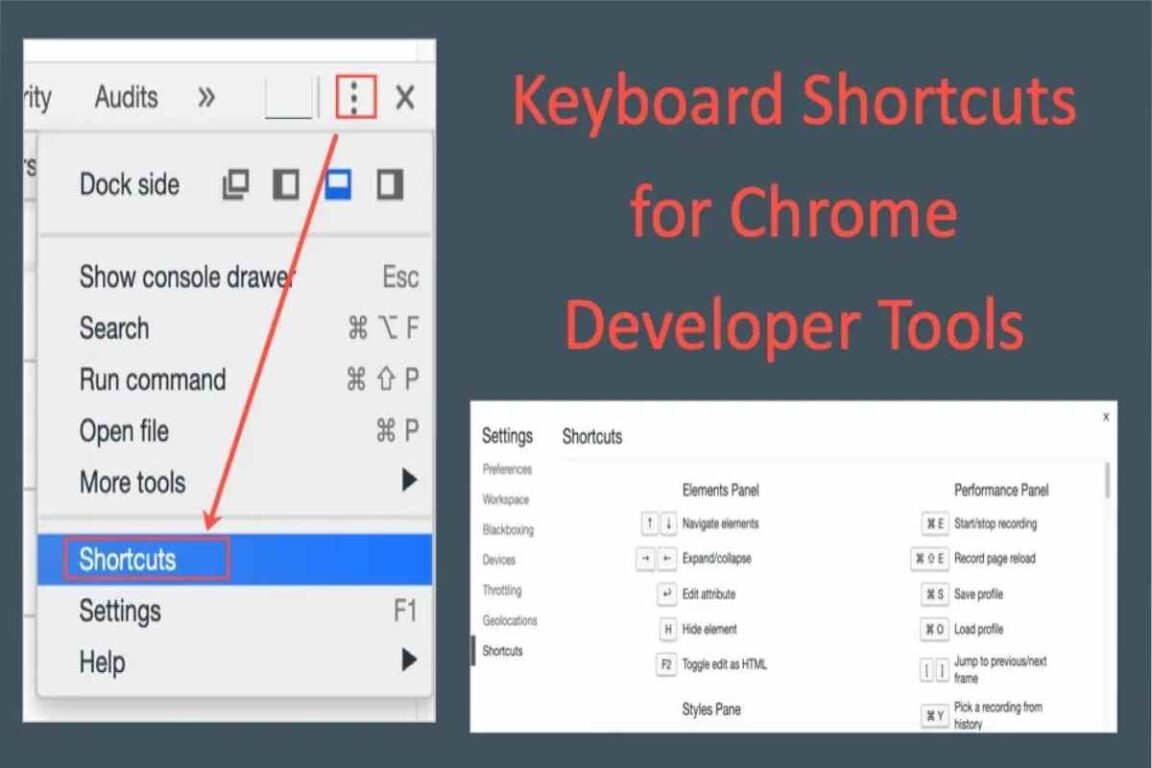
The inspect element shortcut is one of the most useful tools for developers, designers, and anyone curious about how websites are built. It allows users to quickly open the browser’s developer tools to view and modify the HTML, CSS, and JavaScript of a webpage.
Instead of navigating through menus, keyboard shortcuts provide an easy way to access the Inspect Element feature instantly. These shortcuts work in most modern browsers like Chrome, Firefox, Edge, and Safari.
In this guide, you’ll learn what the inspect element shortcut is, how to use it on Windows and Mac, and why it is useful for web development and troubleshooting.
What Is Inspect Element?
Inspect Element is a feature in web browsers that allows users to examine and edit the code behind a webpage.
Using Inspect Element, you can:
- View HTML structure of a webpage
- Modify CSS styles in real time
- Debug JavaScript errors
- Test website designs
- Analyze page performance
It is part of the browser’s Developer Tools (DevTools).
According to the Google Chrome Developer documentation, DevTools allows developers to inspect and debug web applications directly from the browser.
Inspect Element Shortcut Keys
Different operating systems have different shortcuts for opening Inspect Element.
Windows Inspect Element Shortcut
| Action | Shortcut |
| Open Inspect Element | Ctrl + Shift + I |
| Open Developer Tools | F12 |
| Inspect specific element | Ctrl + Shift + C |
These shortcuts work in browsers like:
- Google Chrome
- Microsoft Edge
- Firefox
- Opera
Mac Inspect Element Shortcut
| Action | Shortcut |
| Open Inspect Element | Command + Option + I |
| Inspect element mode | Command + Option + C |
These shortcuts work on:
- Google Chrome
- Safari
- Firefox
Inspect Element Shortcut by Browser
Although most browsers use similar shortcuts, there are slight differences.
| Browser | Windows Shortcut | Mac Shortcut |
| Google Chrome | Ctrl + Shift + I | Cmd + Option + I |
| Firefox | Ctrl + Shift + I | Cmd + Option + I |
| Microsoft Edge | Ctrl + Shift + I | Cmd + Option + I |
| Safari | Option + Command + I | Option + Command + I |
Before using Inspect Element in Safari, you must enable Developer Mode in browser settings.
How to Use Inspect Element
Using Inspect Element is simple.
Step 1: Open the Web Page
Navigate to the webpage you want to inspect.
Step 2: Open Developer Tools
Press the shortcut:
Ctrl + Shift + I (Windows)
or
Command + Option + I (Mac)
Step 3: Select an Element
Click the Inspect Element icon or press:
Ctrl + Shift + C
Then hover over elements on the page to inspect them.
What You Can Do With Inspect Element
Inspect Element is a powerful tool for website analysis and development.
View HTML Code
You can see the structure of the webpage, including headings, paragraphs, images, and links.
Modify CSS Styles
Inspect Element allows you to temporarily change the design of a webpage.
For example:
- Change text color
- Adjust spacing
- Test responsive layouts
Debug JavaScript
Developers can identify and fix errors in JavaScript code.
Analyze Website Layout
You can understand how different elements are positioned on a webpage.
Common Uses of Inspect Element
| Use Case | Explanation |
| Web development | Test HTML and CSS changes |
| Debugging | Identify code errors |
| Learning coding | Study website structure |
| UI testing | Test different design styles |
Many web developers use Inspect Element daily while building websites.
Inspect Element Example
Suppose you want to change the text of a webpage temporarily.
Steps:
- Open Inspect Element using Ctrl + Shift + I.
- Locate the HTML element containing the text.
- Double-click the text in the code panel.
- Edit it and press Enter.
The webpage will display the new text temporarily.
However, the changes disappear when the page is refreshed.
Inspect Element vs View Page Source
These two features are often confused.
| Feature | Purpose |
| Inspect Element | Live editing and debugging |
| View Page Source | Static HTML code view |
Inspect Element allows real-time editing, while View Page Source only shows the original page code.
Limitations of Inspect Element
While Inspect Element is powerful, it has limitations.
Temporary Changes
Edits made through Inspect Element do not permanently change the website.
Cannot Bypass Security
Inspect Element cannot modify server-side data or bypass website security.
Requires Basic Coding Knowledge
Understanding HTML, CSS, and JavaScript helps use the tool effectively.
Tips for Using Inspect Element Efficiently
To use Inspect Element effectively, consider the following tips.
Learn Basic HTML and CSS
Understanding code structure makes it easier to analyze web pages.
Use Responsive Mode
Developer tools include mobile simulation to test website responsiveness.
Use Console for Debugging
The console helps detect JavaScript errors and run scripts.
Who Uses Inspect Element?
Inspect Element is useful for many professionals.
| User | Purpose |
| Web developers | Debug and test websites |
| Designers | Modify page layouts |
| SEO specialists | Analyze page structure |
| Students | Learn web development |
It is an essential tool in modern web development.
Final Thoughts
The inspect element shortcut is a powerful feature that allows users to quickly access developer tools and analyze the structure of any webpage. Whether you are a developer, designer, student, or curious user, learning how to use Inspect Element can help you understand how websites work.
Using shortcuts like Ctrl + Shift + I on Windows or Command + Option + I on Mac makes it easy to open developer tools instantly. By mastering these shortcuts, you can save time and improve your web development skills.